The problem
Hallucinations with no trail
You can see a bad output but not the retrieved context that caused it. Was it a poor retrieval, a bad prompt, or the model ignoring context? You can't tell.
Retrieval quality is a black box
You don't know your average retrieval score, how many chunks are retrieved, or whether reranking actually improves results at scale.
Quality degrades silently
Faithfulness scores slip as your document base grows or prompts change. You find out from user reports, not metrics.
How Zespan helps
A RAG pipeline's steps are separated, not collapsed into one call
Query encoding, vector retrieval, reranking, and synthesis each trace as their own timed step. A hallucination stops being a single opaque LLM response and becomes a pipeline you can actually inspect stage by stage.
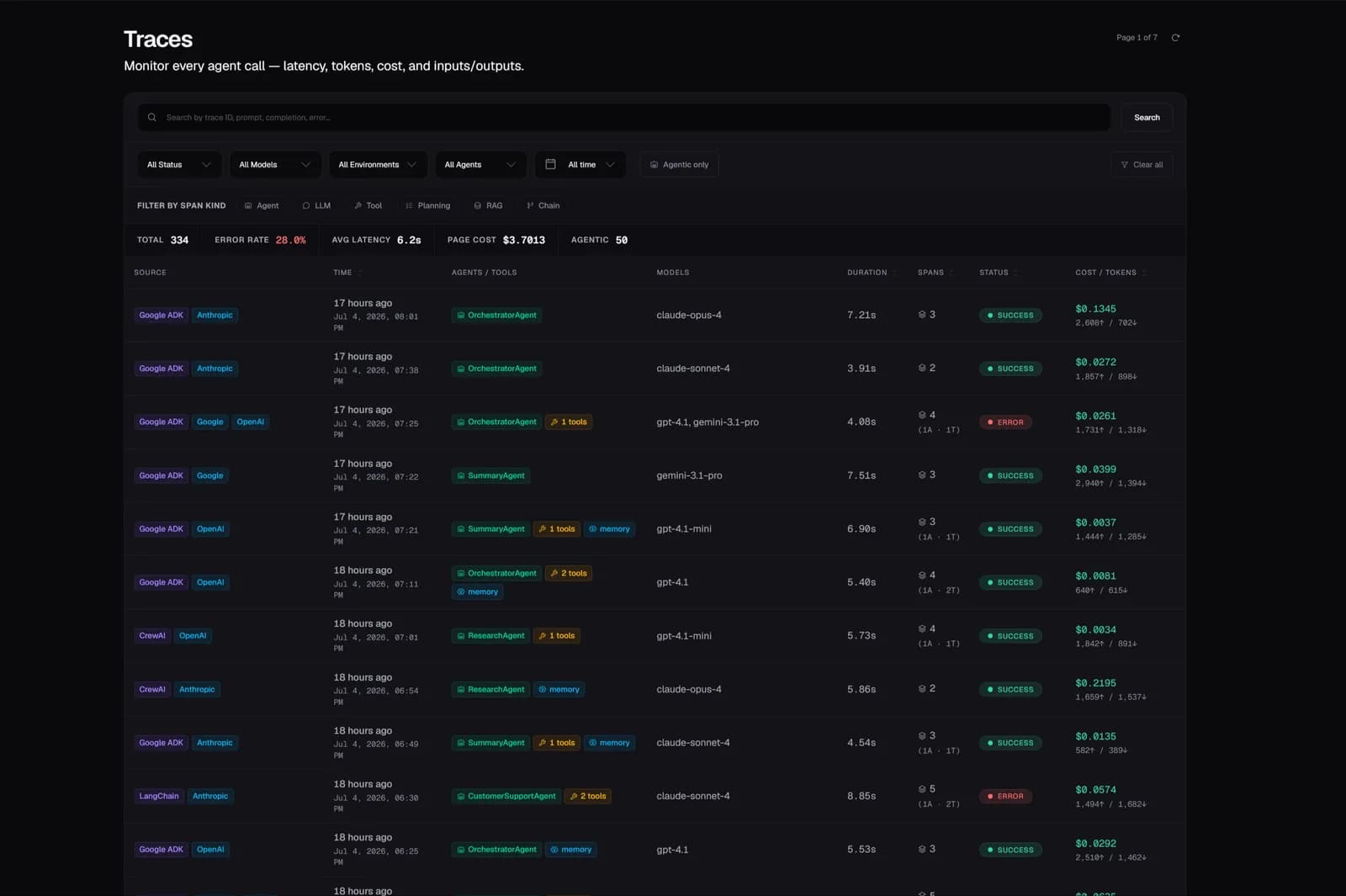
You can see whether retrieval or synthesis is where a response went wrong
The waterfall shows retrieval and synthesis as separate spans, each with its own timing, and retrieval spans carry the chunk scores that entered the context window. A low-score chunk that made it into a final answer is visible as the specific cause, not a guess.
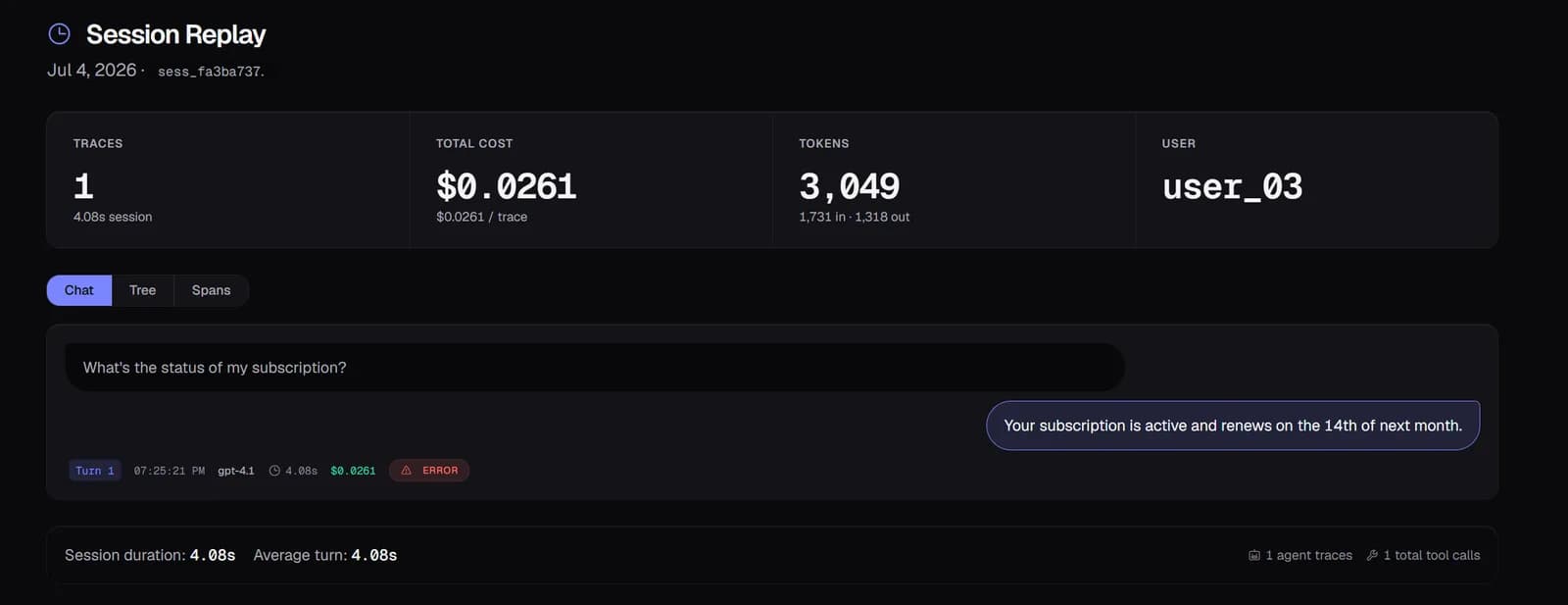
Every response is scored for whether it's actually grounded in what was retrieved
A faithfulness evaluator runs automatically on every response: a score near 1.0 means the answer is grounded in retrieved context, near 0.0 means the model answered from memory instead. You find the hallucinations by the score, not by a user telling you the answer was wrong.
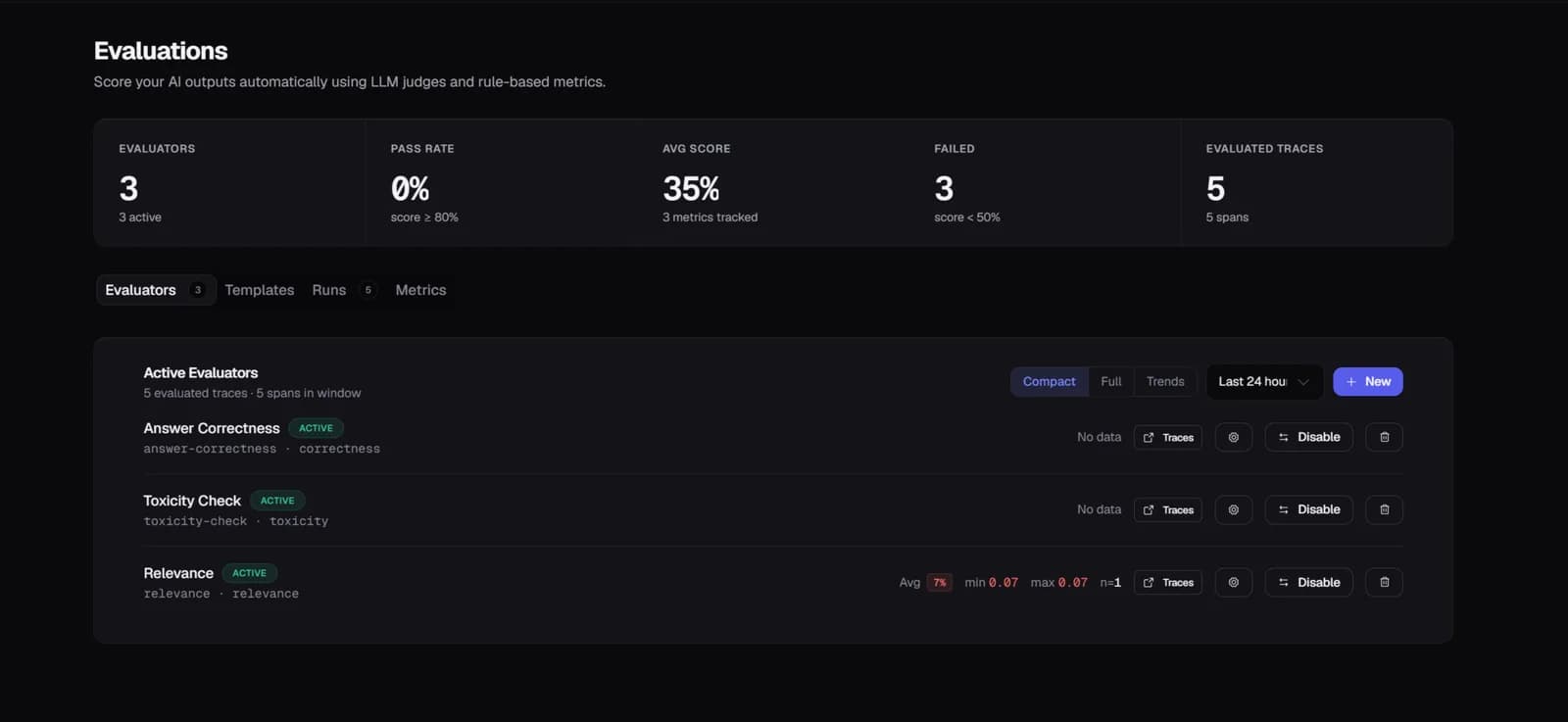
A low score comes with the evidence, not just the number
Behind any low-faithfulness trace is the actual question, the chunks that were retrieved, the answer that was generated, and the reasoning for the score. The gap between what was retrieved and what was said is what tells you whether the retrieval was bad or the model ignored good context.
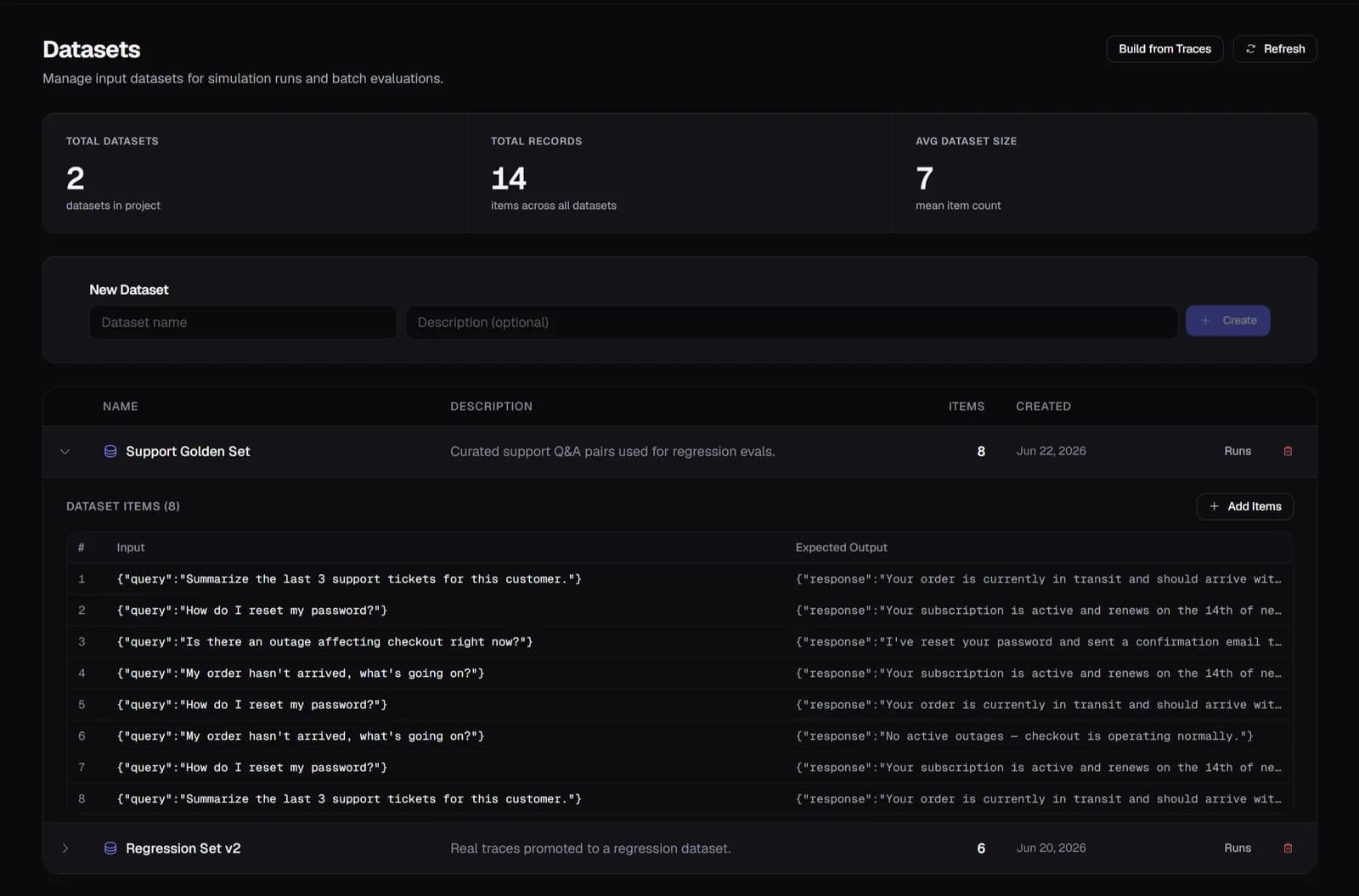
A hallucination you found once doesn't get to happen the same way twice
A failing trace becomes a dataset entry built from the real failure, not a hypothetical test case. The next retrieval config or prompt change runs against that dataset before it ships, so a fix that quietly reintroduces the same hallucination is caught before a user sees it again.
Start free — 50K traces/month, no card needed
See every agent decision, tool call, and handoff in production. Setup takes a few minutes.
Start free →